

Showing posts with label review. Show all posts
Showing posts with label review. Show all posts
Monday, 24 June 2013
Annoucement: Battle of The ChromeBooks, Head to Head


If You Don't Have Them...... Get Them! The Best of the Chrome App Store
The Chrome App store is constantly growing, and there are some top apps hidden deep within the app store that everyone should know about. Google has been pushing offline usability allot lately and these are awesome for the times you are offline.
The most use full app in the Google Suite however, is Chrome Remote Desktop, a simple way to remotely access other computers for when you need that little bit extra from a windows app!
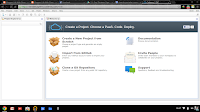 Coding is easy on a Chromebook, with Apps like CoffeeScript IDE, Application Craft and a offline compatible offering from ShiftEdit, but my personal choice is Codenvy IDE. Codenvy IDe allows you to
code in all your favourite languages like HTML, Javascript, Java, Python, ruby, Groovy and PHP and in true Chrome style its even features collaborative abilities!
 unless you have been living under a rock chances are you have use Audacity to convert files or edit audio, and on the Chrome App Store there is TwistedWave, its not quite up to par with Audacity and you need to sign up for a free account to edit more the 30 seconds of Audio ..... but it does the job for trimming, effects and saving to the cloud on both Google Drive and Soundcloud.
 With the App being cloud based and the minimal specs of Chromebooks, Adobe Premiere and Final Cut Pro are not going to be an option, be why not give WeVideo a try? rimming, Splitting and effects WeVideo can handle it.
 Pixlr Editor, is a fantastic Photoshop alternative, colour correction, filters, and all your basic photo shop needs are all covered here and for most beginner to intermediate needs.... it does the job.
If you come across any other must have apps let us know in the comment section below!
The Google Suite of Apps
If you have Google Chrome, you have a Google Drive app installed, but a lot of Google apps don't come pre-installed. things like Google Calender, Gmail offiline and Google keep all work offline just as they would online and this is a big plus.The most use full app in the Google Suite however, is Chrome Remote Desktop, a simple way to remotely access other computers for when you need that little bit extra from a windows app!
Coding
 Coding is easy on a Chromebook, with Apps like CoffeeScript IDE, Application Craft and a offline compatible offering from ShiftEdit, but my personal choice is Codenvy IDE. Codenvy IDe allows you to
 code in all your favourite languages like HTML, Javascript, Java, Python, ruby, Groovy and PHP and in true Chrome style its even features collaborative abilities!
Audio

Video

Images

If you come across any other must have apps let us know in the comment section below!
Wednesday, 19 June 2013
Should I Buy a Chromebook? A Quiz
A short quiz i have made to see if a chromebook might fit into your lifestyle, note this is my opinion only from my experiences and should be taken as advice, not as a definative answer
Tuesday, 18 June 2013
Chromebook + Android = A winning combo?
As most of my regular readers know, it’s been just short of two weeks since I got my chromebook, and yes.... I’m still singing its praises! But I haven't spoken about how it’s integrated with my existing devices to much yet. In addition to my Chromebook I run a few devices including a desktop PC running windows 7 (still haven't switched it on since my chromebook purchase), An LG Optimus L9 running Jellybean Flavoured Android and a really cheap ASK android tablet (again jellybean) that a family member brought back from Hong Kong for me, and I have official sold my soul to Google! Today I will talk about some of the services I use across all of my Google/android devices.
Google Calender:
Although it may seem trivial, Google calendar has been fantastic, I have added my work rosters (I'm a shift worker) assignment due dates and other personal date to it on my chromebook. Effortlessly with missing a beat a week out from my assignment being due, a reminder popped up on my phone, thank you Google. The user interface and functionality of Google Calender is fantastic and it integrates so smoothly it’s ridiculous.
Google Drive:
Before my chromebook I had never used Google Drive, but I had some experience with SkyDrive (the Microsoft offering) and I have to say, although it’s practical and easy to use the UI could use a little tweaking once you get your head around it though, it’s fantastic, its integration with Google docs and its usability is second to none. The Android app can be a little fiddly at times on my phone but on my tablet I can edit all my docs on the fly!
Google Play Music:
This app is the one that truly caught me by surprise, as I have said in past posts I’m an ex-muso. So my music collection is rather large. There is no way the whole thing would fit on any of android devices, so I decided to give Google Play Music a try. After spending a whopping 12 hours uploading all my music to my account (just set it up before bed and go to sleep no use sitting there waiting) it was an amazing feeling to see all my music on all my devices! And no extra storage needed no removable hard drives and no hassles! there are however two downsides to Google Play Music in my eyes: a lack of customisable graphic EQ and the fact that it defaulted to one particular album cover I have for all my artists without album covers, and it’s a crappy one at that (rock classics of the 80's or something equally as corny).
No matter what you want (music, word processing, storage or something to keep track of your schedule) it all ties together nicely across the two platforms!
Google Calender:
Although it may seem trivial, Google calendar has been fantastic, I have added my work rosters (I'm a shift worker) assignment due dates and other personal date to it on my chromebook. Effortlessly with missing a beat a week out from my assignment being due, a reminder popped up on my phone, thank you Google. The user interface and functionality of Google Calender is fantastic and it integrates so smoothly it’s ridiculous.
Google Drive:
Before my chromebook I had never used Google Drive, but I had some experience with SkyDrive (the Microsoft offering) and I have to say, although it’s practical and easy to use the UI could use a little tweaking once you get your head around it though, it’s fantastic, its integration with Google docs and its usability is second to none. The Android app can be a little fiddly at times on my phone but on my tablet I can edit all my docs on the fly!
Google Play Music:
This app is the one that truly caught me by surprise, as I have said in past posts I’m an ex-muso. So my music collection is rather large. There is no way the whole thing would fit on any of android devices, so I decided to give Google Play Music a try. After spending a whopping 12 hours uploading all my music to my account (just set it up before bed and go to sleep no use sitting there waiting) it was an amazing feeling to see all my music on all my devices! And no extra storage needed no removable hard drives and no hassles! there are however two downsides to Google Play Music in my eyes: a lack of customisable graphic EQ and the fact that it defaulted to one particular album cover I have for all my artists without album covers, and it’s a crappy one at that (rock classics of the 80's or something equally as corny).
No matter what you want (music, word processing, storage or something to keep track of your schedule) it all ties together nicely across the two platforms!
Wednesday, 12 June 2013
Life with Chrome OS, One Week On!
So its been a week since I made the switch to my chromebook being my primary device, and I can honestly say I still love it. Its fast, practical and once you make the adjustment to living in the cloud, almost just as functional for most peoples needs as a windows machine. Today I thought I would write a bit about the offline abilities of the Chrome OS and how functional it really is.
Due to my household being a relatively heavy Internet user we have use our aloud downloads for the month and our speed is capped. When I first realised this a little bit of panic did cross my mind as the practicality of Chrome OS is almost 100% online, so I thought that I may have shot myself in the foot. I decided the best method would be to transfer my current Uni assignments I was working on to the built in hard drive in my HP Pavilion 14-c001tu Chromebook. I then changed some settings in Google Doc's and disconnected from my network to see exactly what it could do offline. Much to my relief Google Docs works perfectly offline. I was still able to edit and save my documents (on my hard drive rather than in google drive) and able to view .docx and .pdf files not a problem. this functionality I think is a vital feature for the future success of cloud dominated computing and has confirmed to me that a chromebook will be more then sufficient for 95% of my needs. whilst playing around I also enabled offline use for my Google Calender and Gmail, both of which work exactly as you would expect with any changes saved locally to auto update in the cloud on re-connection.
The other first experience I had in the last few days was printing with my chromebook, although you cant go installing the drivers for a printer and connecting it via USB to the chromebook like a traditional PC, Google Print is available. I was fortunate that my current printer was google print capable and all I had to do was set up my google print account. this involved putting in the IP address of a google print ready printer to your browser changing some very basic setting and logging in. one this is done you can print anything from anywhere just as you normally would. The one gripe i have with the print capabilities of Chrome OS is that I have a wifi network attached printer. unlike windows I cant view the other items attached to my network and i think this feature given a large number of printers are network attached would be a huge plus to enable offline use.
Due to my household being a relatively heavy Internet user we have use our aloud downloads for the month and our speed is capped. When I first realised this a little bit of panic did cross my mind as the practicality of Chrome OS is almost 100% online, so I thought that I may have shot myself in the foot. I decided the best method would be to transfer my current Uni assignments I was working on to the built in hard drive in my HP Pavilion 14-c001tu Chromebook. I then changed some settings in Google Doc's and disconnected from my network to see exactly what it could do offline. Much to my relief Google Docs works perfectly offline. I was still able to edit and save my documents (on my hard drive rather than in google drive) and able to view .docx and .pdf files not a problem. this functionality I think is a vital feature for the future success of cloud dominated computing and has confirmed to me that a chromebook will be more then sufficient for 95% of my needs. whilst playing around I also enabled offline use for my Google Calender and Gmail, both of which work exactly as you would expect with any changes saved locally to auto update in the cloud on re-connection.
The other first experience I had in the last few days was printing with my chromebook, although you cant go installing the drivers for a printer and connecting it via USB to the chromebook like a traditional PC, Google Print is available. I was fortunate that my current printer was google print capable and all I had to do was set up my google print account. this involved putting in the IP address of a google print ready printer to your browser changing some very basic setting and logging in. one this is done you can print anything from anywhere just as you normally would. The one gripe i have with the print capabilities of Chrome OS is that I have a wifi network attached printer. unlike windows I cant view the other items attached to my network and i think this feature given a large number of printers are network attached would be a huge plus to enable offline use.
Monday, 10 June 2013
Life With Chrome OS, a few days in.....
So its been about 4 days since I got my HP Chromebook, and its itme for an update as to how it has been integrated into my life so far. At this stage I am 100% happy with my switch to Chrome OS, I haven't turned on my PC since I purchased the new toy and I have only used my old Windows laptop once. In my day job I am unfortunately forced to use a Windows desktop as it uses some very specific software for taking bookings and dispatching them to taxi's, but I have even brought the Chromebook to work on the odd graveyard shift to study.
So far I have not found any application in my day to day life that the Chromebook cant do, My Uni study is fine, I have used both Google Doc's and Sky Drive's online Microsoft Office Suite. I have found some cool little games to kill the time (Band Stars, Review to come). and I have started using Google Calendar (one of the few google offerings I wasn't using regularly up until now.) So far I am so happy with this device I more then likely will be selling my old Windows 7 Toshiba Laptop (not to bad a laptop with 2gig of ram and an i3 processor) as I just dont need it.
I will be keeping my desktop as I use software like Dreamweaver and Photoshop as well as Pro Tools (for audio recording and editing) quite a bit approximately once or twice a week and I will obviously need a desktop with more processing power for those, but once viable web based alternatives become available I would not be apposed to making the permanent switch.
So far i have not found anything that causes much lag at all on the OS, I have had 10+ tabs open simultaneously and not had any drama's. There are only two things I would change so far (so google if you are listening.....)
1. Full Screen - I would love the ability to make apps true full screen (eg no google chrome adress bar etc.) i know this is mealy an appearance mod and not really going to change anything functuality wise. but in apps like Google Docs etc. Do we really need the address bar? either have a short cut / function key to go in and out of full screen mode, or make it when you mouse over and hover the address bar pops up, on a laptop i thing screen real estate is vital and this could improve it a bit.
2. Beter Screening on the web store - I Installed Need For Speed app found in the games section, when you click on the icon you go to a sign up page, and then have the option to download an .exe (this is useless on chrome os as you cant instsall them) and other games in the store i littleraly just links to the website to play the flash based game. I understood when I made the decision to purchase this laptop that I couldnt go installing Skyrim or Black Ops 2 on it, but I find these "games" misleading. why not have a section in the webs tore of (fun websites) or (game website) rather then advertising them as games with the consumer beleiving they are stand alone apps.
So far I have not found any application in my day to day life that the Chromebook cant do, My Uni study is fine, I have used both Google Doc's and Sky Drive's online Microsoft Office Suite. I have found some cool little games to kill the time (Band Stars, Review to come). and I have started using Google Calendar (one of the few google offerings I wasn't using regularly up until now.) So far I am so happy with this device I more then likely will be selling my old Windows 7 Toshiba Laptop (not to bad a laptop with 2gig of ram and an i3 processor) as I just dont need it.
I will be keeping my desktop as I use software like Dreamweaver and Photoshop as well as Pro Tools (for audio recording and editing) quite a bit approximately once or twice a week and I will obviously need a desktop with more processing power for those, but once viable web based alternatives become available I would not be apposed to making the permanent switch.
So far i have not found anything that causes much lag at all on the OS, I have had 10+ tabs open simultaneously and not had any drama's. There are only two things I would change so far (so google if you are listening.....)
1. Full Screen - I would love the ability to make apps true full screen (eg no google chrome adress bar etc.) i know this is mealy an appearance mod and not really going to change anything functuality wise. but in apps like Google Docs etc. Do we really need the address bar? either have a short cut / function key to go in and out of full screen mode, or make it when you mouse over and hover the address bar pops up, on a laptop i thing screen real estate is vital and this could improve it a bit.
2. Beter Screening on the web store - I Installed Need For Speed app found in the games section, when you click on the icon you go to a sign up page, and then have the option to download an .exe (this is useless on chrome os as you cant instsall them) and other games in the store i littleraly just links to the website to play the flash based game. I understood when I made the decision to purchase this laptop that I couldnt go installing Skyrim or Black Ops 2 on it, but I find these "games" misleading. why not have a section in the webs tore of (fun websites) or (game website) rather then advertising them as games with the consumer beleiving they are stand alone apps.
Thursday, 6 June 2013
First Impressions of the HP Pavilion 14-c001tu Chromebook
So its done, I have handed over my hard earned cash and purchased the HP Pavilion 14-c001tu Chromebook. While I was in the store I had a quick once over of the Samsung and Acer offerings. The big difference is the obvious screen size. both the samsung and the acer chromebooks have 11 inch screens while The HP has 14 inch screen, but the samsung one is just soooooo pretty. It looks almost identical to a Macbook air and is slim and compact, I was almost going to purchase it instead but in the back of my mind I kept replaying the reports of the cracking screen issues the samsung is having. I decided to pick it up just to have a feel of the weight and build quality and as I lifted it from the bottom right corner of the body I felt the plastic flex under its own weight and that was the finisher for me, sorry samsung!

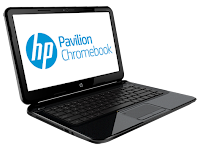
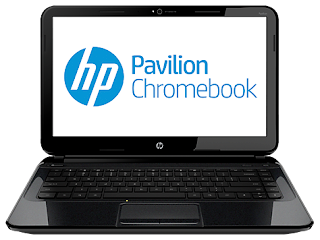
When I got home I opened up my new HP Pavilion 14-c001tu Chromebook from its pretty HP branded box to find a beautiful slim full size laptop sitting in front of me. I popped in the surprisingly small battery sat down on the couch with it on my lap and opened the screen to my surprise the battery already had a quarter charge and it booted up quickly, very quickly under ten second! I had read that this was one of the main advantages of the Chrome OS and I didn't think i would notice to much of a difference, but it blew me away. I don't know if I will be able to look at my windows laptop without laughing every time I wait for it to boot now.
 After selecting languages and agreeing to the terms and conditions (which of course I read in full.... don't we all?) I was presented with a log in screen. I pumped in my existing gmail account and instantly I was on the desktop, I felt like a hacker and literally said "yes, I'm in!" out loud. But now what? well I suppose its time to start sorting out syncing my accounts to this device, I jumped on the Doc's app, and it was already sync'ed with my google drive....... ok that was easy. so I clicked on the Gmail app, again no login required... its already done. Surely it cant be this easy? I thought to myself. then i said to myself ok...... music! lets test these speakers out. I jumped on the app store to get a music player, as I have an android phone and tablet as my current devices at the moment I opted for the "Play Music" App (review to come). I opened the app, and there it is, all my music from my other devices good to go. And i was done, no copying existing files from another computer over the network or on a external hard drive, no saving account passwords, everything just worked! Honestly I was a little disappointed, half the fun of a new devices is setting it up to your likings and rediscovering old files while you transfer them, but google has removed the need for this.
Ok, so its time to have a look at this Web Store everyone has been talking about. I loaded it up a little blind, I had no idea were to start, so I downloaded sky drive (so I could access Microsoft Office's online app's) a few games (angry birds and need for speed reviews to come) and Pixl (a web app alternative to photoshop, review to come.)
Physically the computer is great! its only 2.1cm think it has a nice 14 inch screen the keyboard is good. The track pad it the only let down so far the texture isn't as smooth as I'm used to but I'm sure ill adjust.
I haven't had a chance to push it to its Intel Celeron 847 with Intel HD Graphics (1.1 GHz, 2 MB cache, 2 cores) to the limits yet, but with 4gb of RAM I'm sure it will handle anything the chrome OS throws at it. I will keep you up to date throughout the next week as often as possible as well as some reviews of apps and options the OS.

When I got home I opened up my new HP Pavilion 14-c001tu Chromebook from its pretty HP branded box to find a beautiful slim full size laptop sitting in front of me. I popped in the surprisingly small battery sat down on the couch with it on my lap and opened the screen to my surprise the battery already had a quarter charge and it booted up quickly, very quickly under ten second! I had read that this was one of the main advantages of the Chrome OS and I didn't think i would notice to much of a difference, but it blew me away. I don't know if I will be able to look at my windows laptop without laughing every time I wait for it to boot now.
 After selecting languages and agreeing to the terms and conditions (which of course I read in full.... don't we all?) I was presented with a log in screen. I pumped in my existing gmail account and instantly I was on the desktop, I felt like a hacker and literally said "yes, I'm in!" out loud. But now what? well I suppose its time to start sorting out syncing my accounts to this device, I jumped on the Doc's app, and it was already sync'ed with my google drive....... ok that was easy. so I clicked on the Gmail app, again no login required... its already done. Surely it cant be this easy? I thought to myself. then i said to myself ok...... music! lets test these speakers out. I jumped on the app store to get a music player, as I have an android phone and tablet as my current devices at the moment I opted for the "Play Music" App (review to come). I opened the app, and there it is, all my music from my other devices good to go. And i was done, no copying existing files from another computer over the network or on a external hard drive, no saving account passwords, everything just worked! Honestly I was a little disappointed, half the fun of a new devices is setting it up to your likings and rediscovering old files while you transfer them, but google has removed the need for this.
Ok, so its time to have a look at this Web Store everyone has been talking about. I loaded it up a little blind, I had no idea were to start, so I downloaded sky drive (so I could access Microsoft Office's online app's) a few games (angry birds and need for speed reviews to come) and Pixl (a web app alternative to photoshop, review to come.)
Physically the computer is great! its only 2.1cm think it has a nice 14 inch screen the keyboard is good. The track pad it the only let down so far the texture isn't as smooth as I'm used to but I'm sure ill adjust.
I haven't had a chance to push it to its Intel Celeron 847 with Intel HD Graphics (1.1 GHz, 2 MB cache, 2 cores) to the limits yet, but with 4gb of RAM I'm sure it will handle anything the chrome OS throws at it. I will keep you up to date throughout the next week as often as possible as well as some reviews of apps and options the OS.
Subscribe to:
Posts (Atom)